

This essay is intended for designers who wish to create cohesive color palettes. It is based on real design principles and supported by our online tool that allows you to select a base color, choose a harmony style and instantly preview the results.
1. Step Choose the Start Color
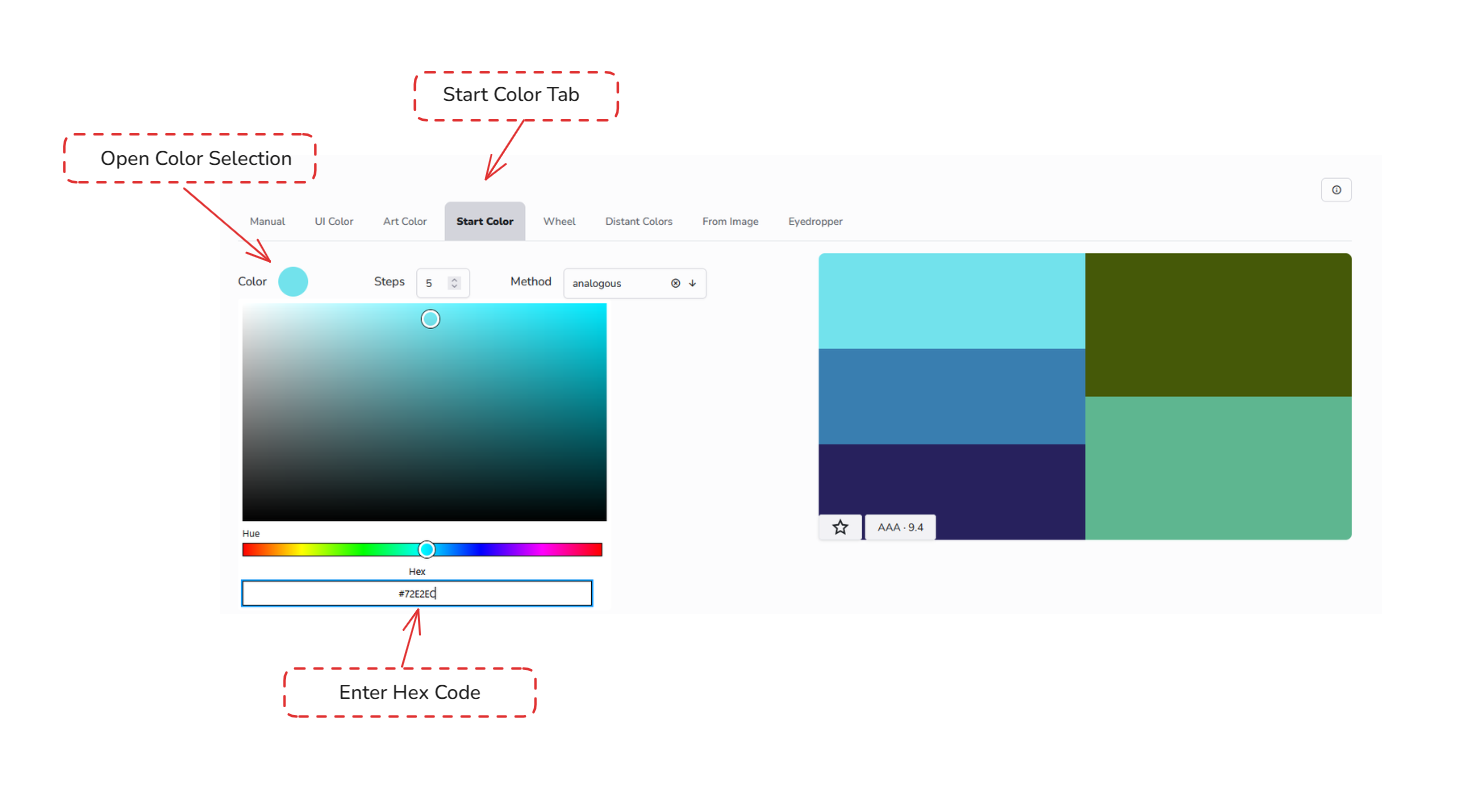
Assuming, you have a color to begin with. A base color from a client, a brand color or just a color that matches the mood. In the tool choose the tab "Start Color" and press the round button for choosing the start color. Choose the color in the patch or just enter a hex code underneath. When done , hit OK.
2. Choose the number of colors
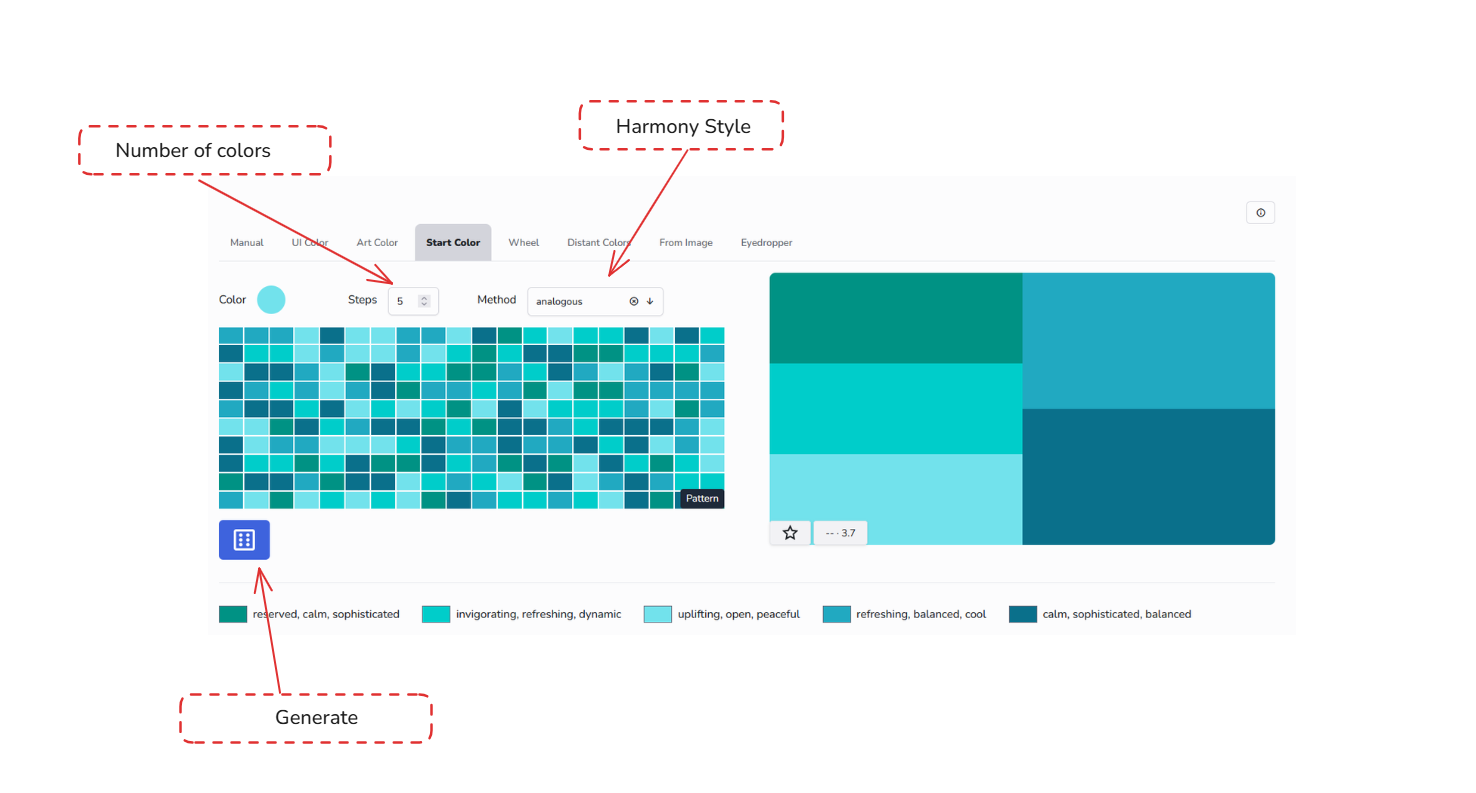
Now choose the number of colors your need in the palette. Enter any number of colors from 4 to 10. If you just want a complimentary, choose 4 and ignore the colors, not needed.
3. Choose a Harmony Style
Choosing the harmony style give the generator your creative direction. This is based on a color wheel rules. You can visualize them on the tab Wheel.
4. Create a Beautiful Color Scheme until done
Now just hit the Dice button to start the color palette generator. For your project a color combination is created that includes the start color. A color palette display is updated as well as a simple mock-up display. The typography mock-up uses the pair of colors with the highest contrast. The pattern uses all colors.
Now you have some options to evaluate the result.
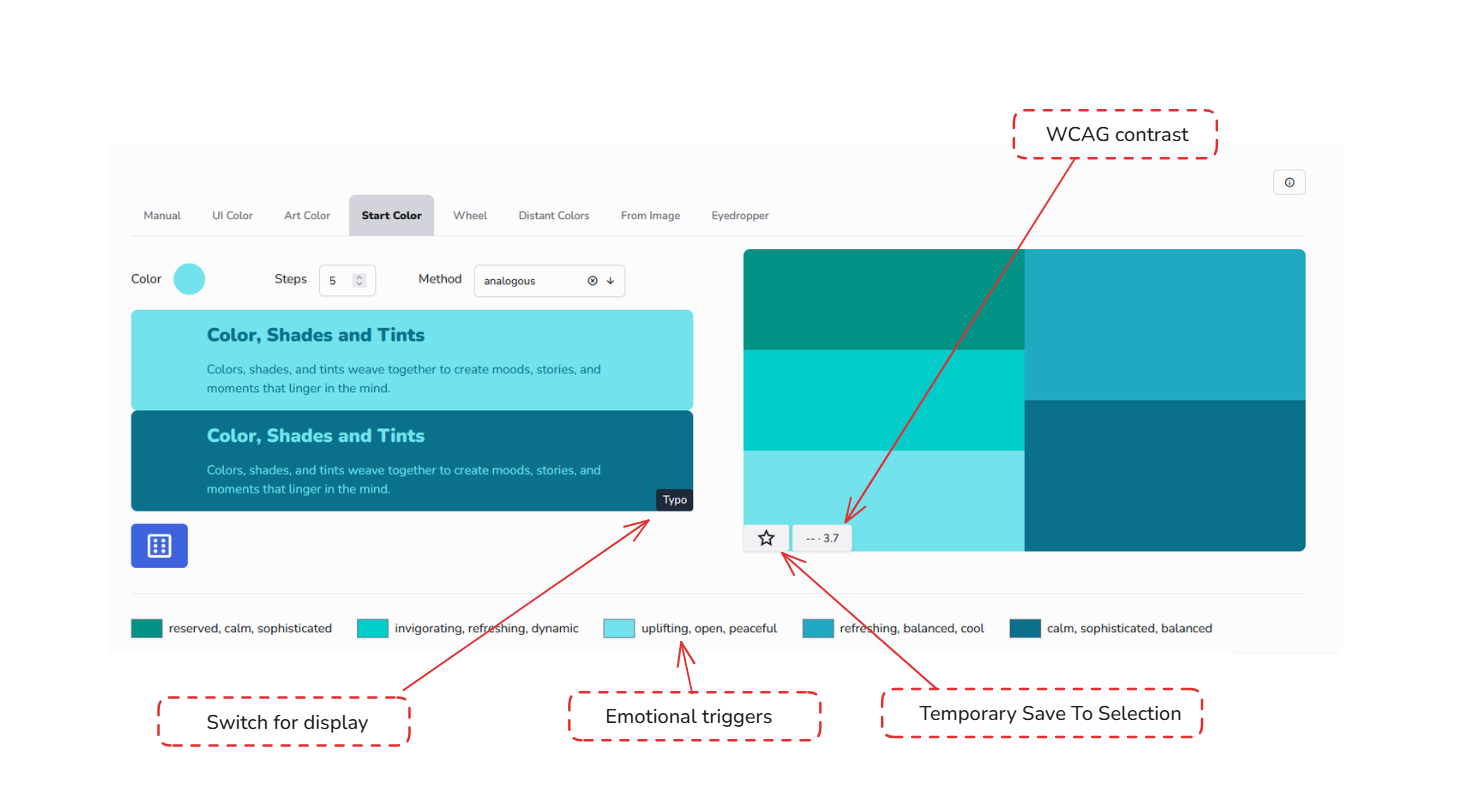
View the created palette, emotional triggers and accessibility contrast level and ratio.
Copy the hex color values directly from the palette display.
Switch the mock-up image between typography and pattern
Save the palette to the temporary selection
Save the palette into your vault as a public or private palette (depending on the plan).
If you found your perfect color combination, you might already be done.
The accessibility contrast level and ratio are analyzed based on the pair of colors with the highest contrast. The level '--', 'AA' or 'AAA' is valid for small text (AA=4.5:1, AAA=7:1) in alignment with WCAG 2.0.
But I like to save the palette to the temporary selection and view all alternatives side by side by navigating to the selection in the main menu.
Note: From the selection page you can return to the create page for any color palette using the context menu. Also you can view mock-ups and palette data in the detail page. E.g. in the details you find gradient shades and the color values expressed in other color spaces.
If you saved the palette into your account you have access to all export modes including figma (pro plan).
5. Refine the Color Palette as required
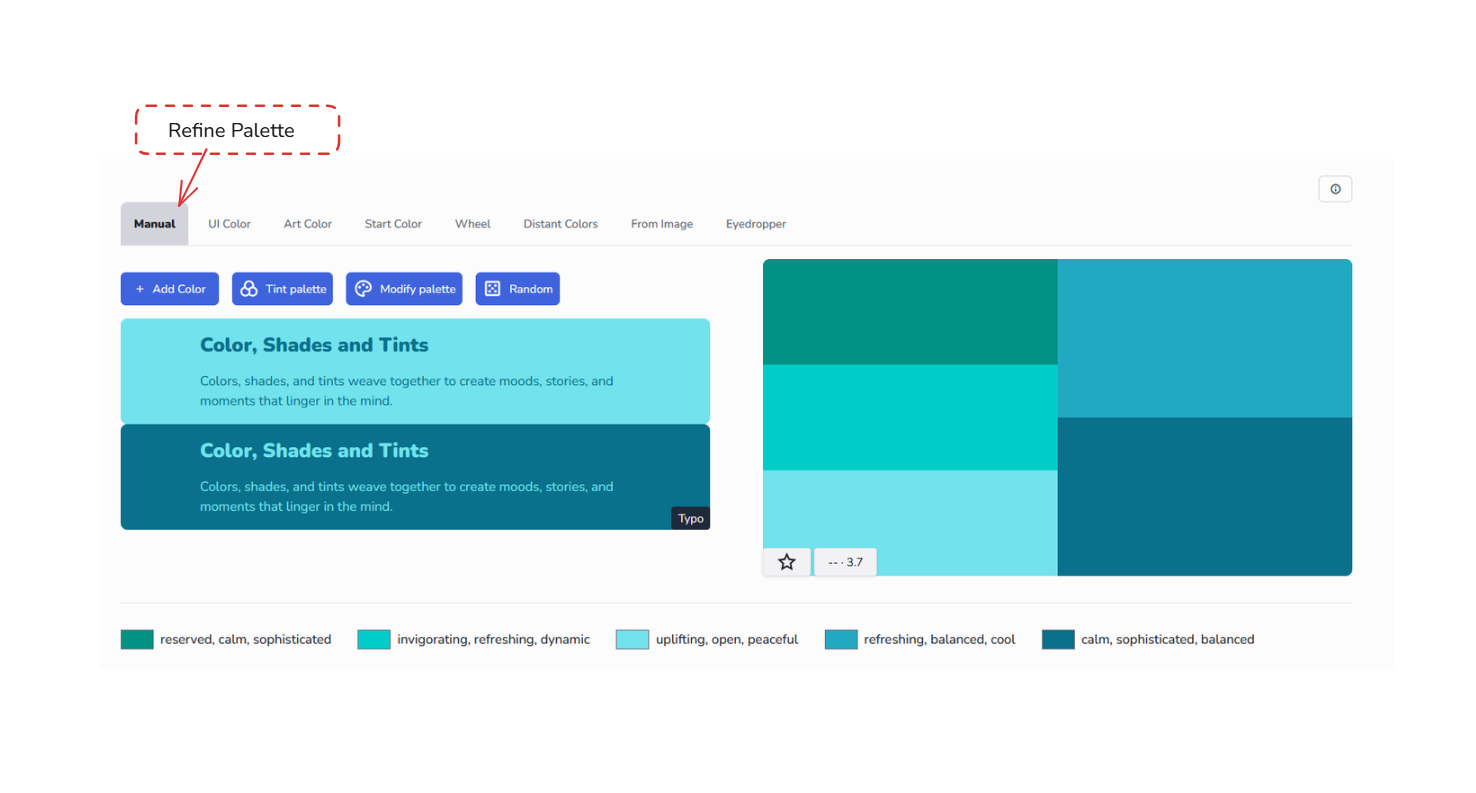
If you want to refine a palette, e.g. by modifying a color, adding or removing a color, tinting or shifting the whole palette, you switch to the manual mode and use the available tools over there.
With just one color, you can spark an entire design direction. Use the tool, explore the options, and trust your eye. A stunning palette is only a few clicks away.