Documentation for ColorJoy.me
Introduction
Collections are a way to organize your palettes and to get feedback. Is is for users with subscription.
To save a palette to a collection the palette must first be saved as private palette or must be an available public palette.
Create a collection
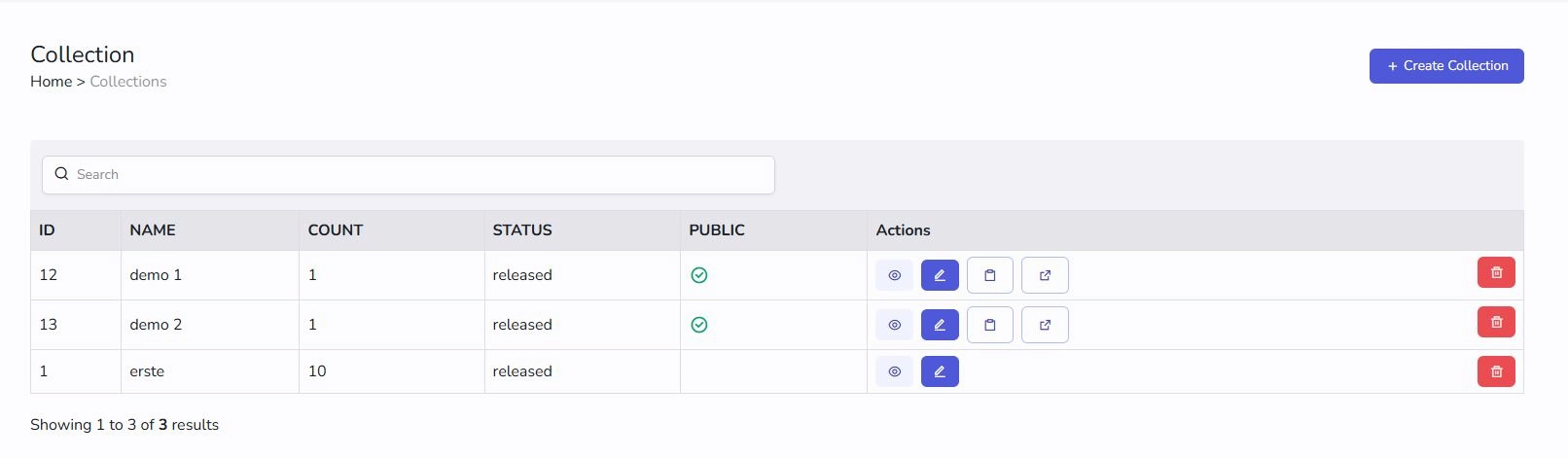
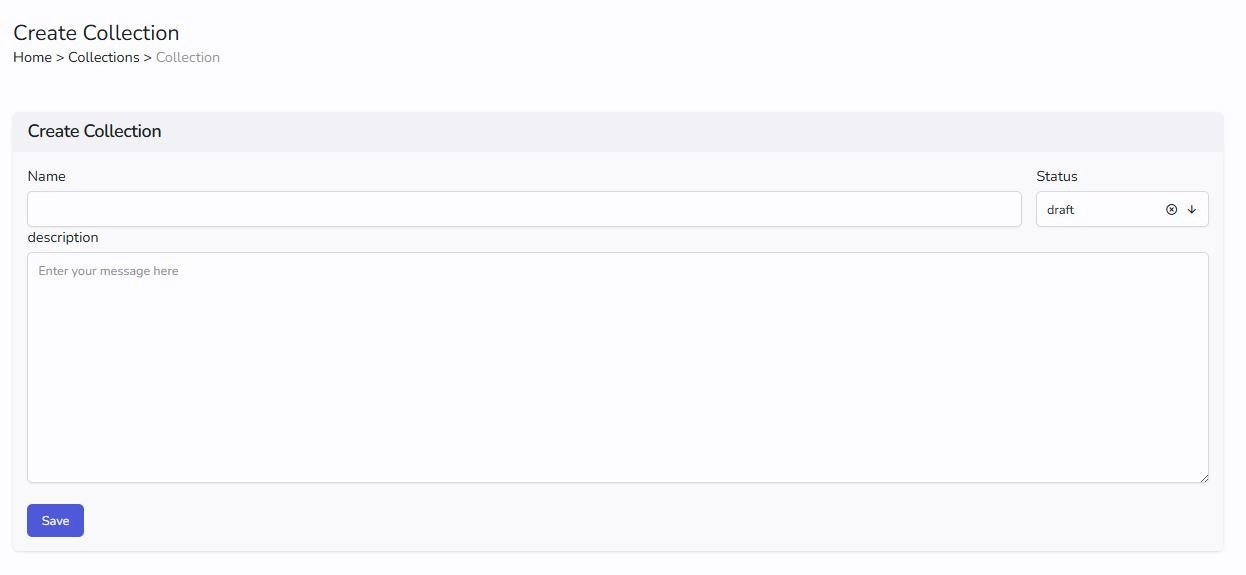
Go to collection in the main menu and click create collection.
Choose a title, a status and an optional description and save.
This is an empty collection only you can access so far.
You may want to set this collection to public, you need to set the status to released. And follow the instruction under Make palette public.
Edit a collection
Go to collections and you will find a table with all your collections. Press the pen button.
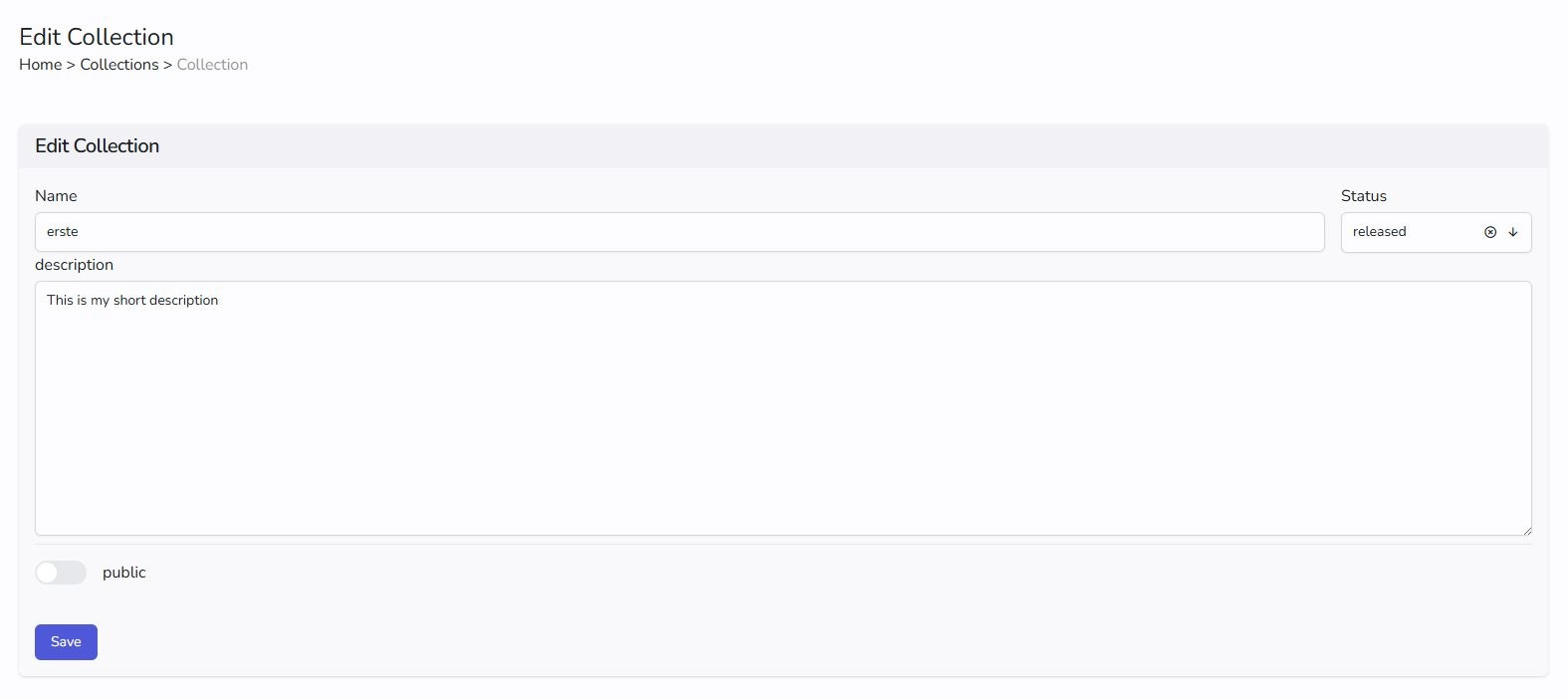
Now the dialogue to set title, status and description is available. When done save.
Add/remove palettes from a palette
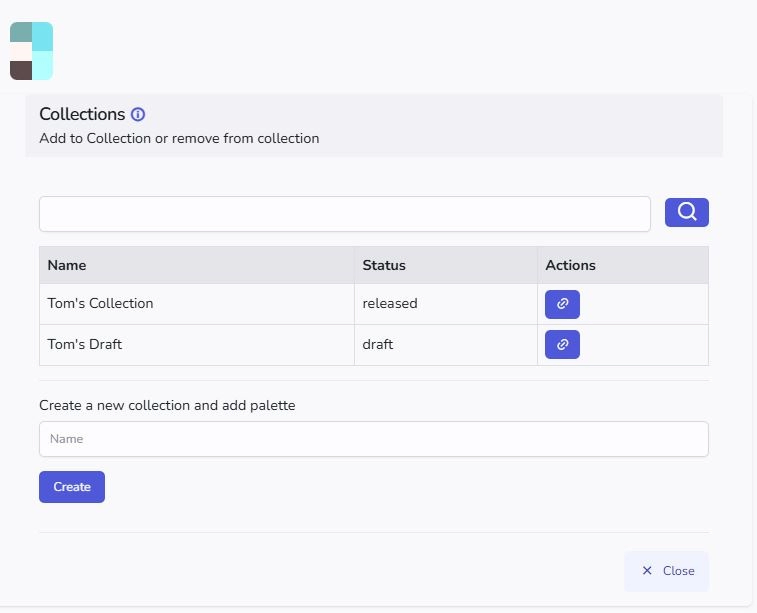
Adding and removing is done on a a palette display with a context menu 'collection'.
A sidebar opens and shows your palettes. Then click the link button or unlink button.
Delete a collection
Go to the collection in the main menu. You will get the table and press the red button with the trash can. After confirming your intend the collection is deleted. The palettes itself remain existent, so you can either find them in your vault (if it is a private palette) or in the public feed.
Make a collection public
You can share released palette in the public. Go to the edit page and toggle public. This is intended to quickly collect feedback from colleagues or clients.
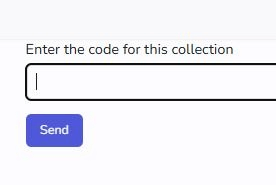
Public palettes are accessible without sign in for everyong who knows the link. You may password protect or limit the availability until a choosen date.
There are some options you may want to set.
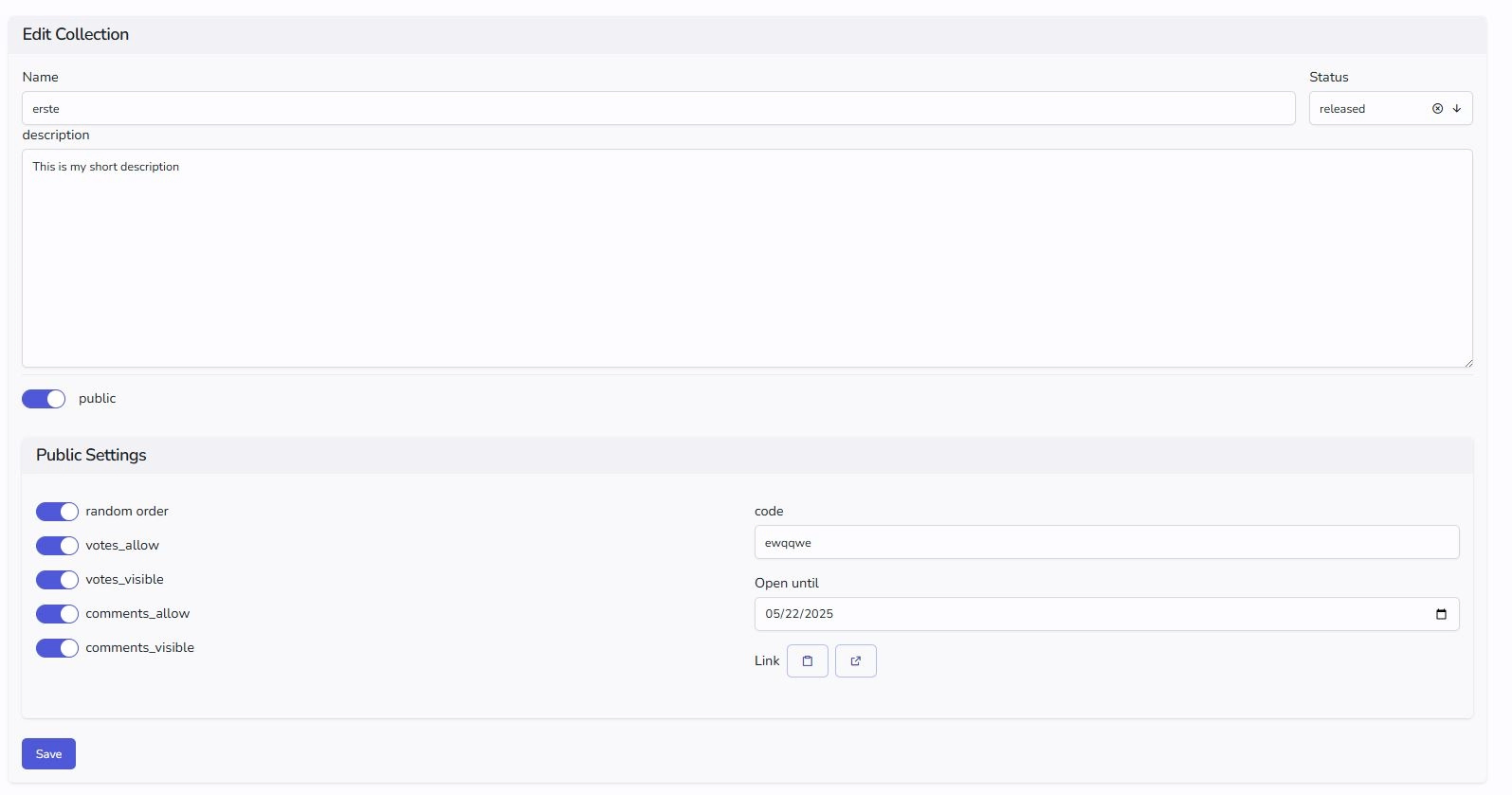
Random order shuffles the palette in your public page. This is useful to get unbiased feedback. If palettes are served in the same order, the first palettes may get more votes, just because they are the first. Random order prevents this.
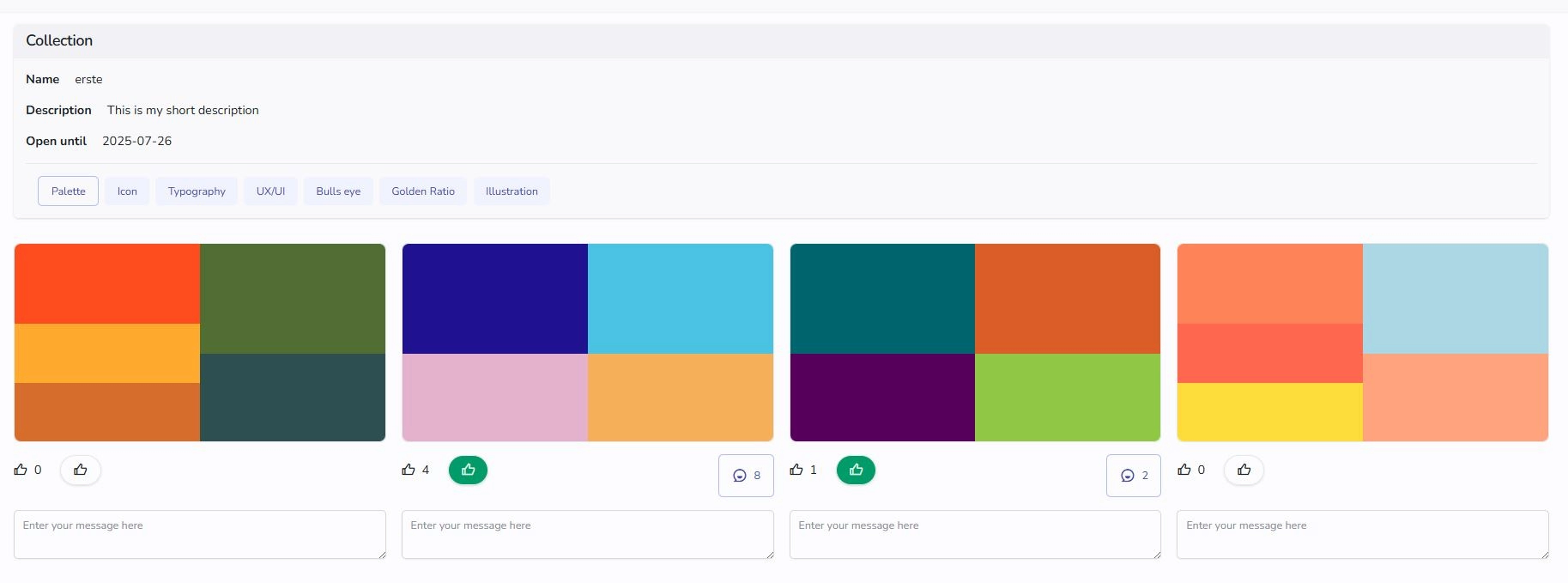
Votes allow enables the voting feature. People can press the star button and the palette gets a vote. Signed in users can only vote once, other users may vote one time per session.
votes visible makes the number of votes visible. This is useful at the end of a voting periode, when you want to show the results.
comments allow activates the comments feature. People can commment privately. No user names are shown. If someone misuses this or violates the terms, anyone can file a report and the comment disappears. You will be notified and are able to either delete the comment or request republishing. In the latter case we will check the comment and either republish the comment or delete it.
comments visible This switches the visibility of comments. Useful if you want to share the results at the end of a polling session.
See the feedback
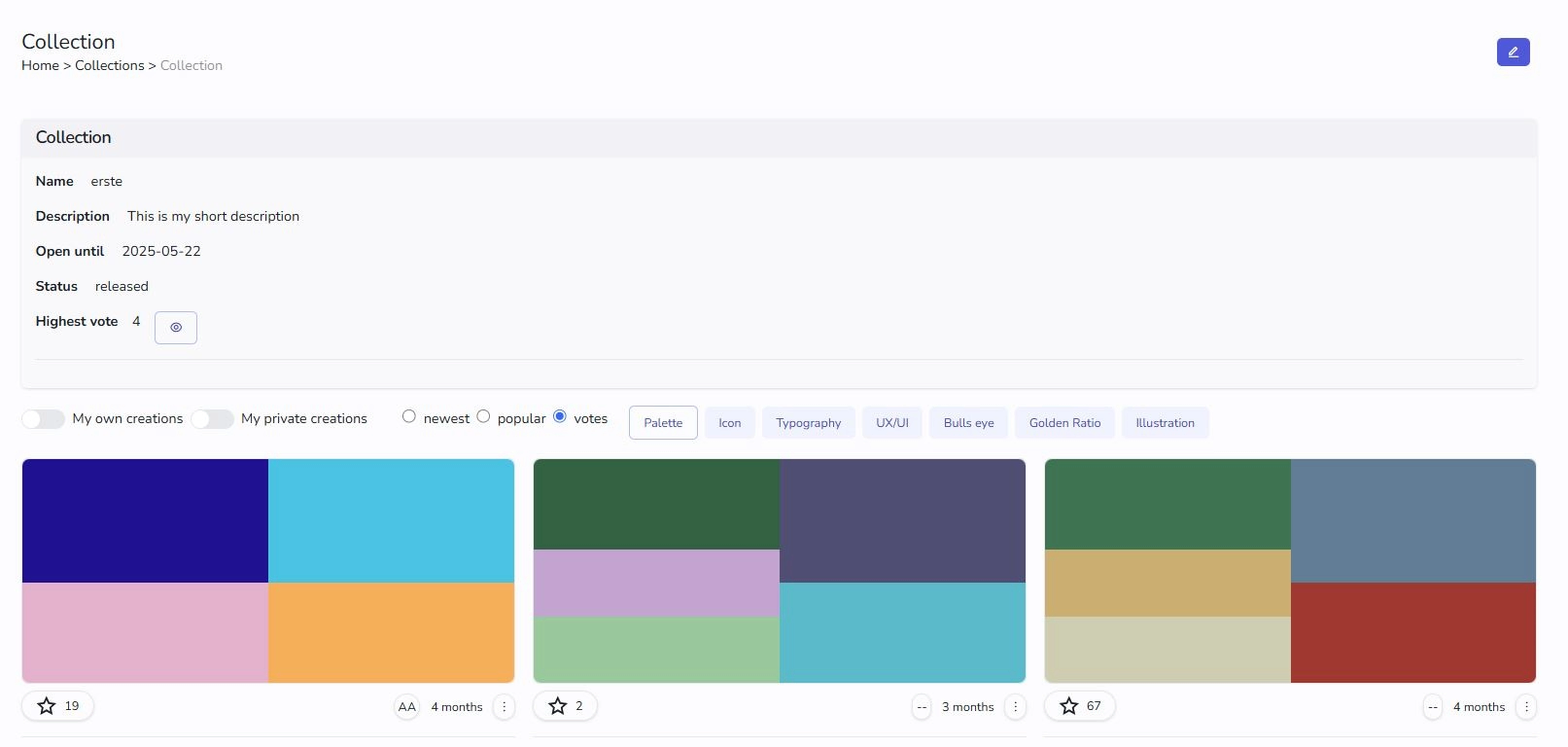
To see the feedback, go to collections in the main menu and press the eye button for the collection. You will see the results. You can sort by votes. To see the comments just expand the comment section by clicking the comment button.