Documentation for ColorJoy.me
Creation of Palettes
Introduction
As there are many ways to create palettes, there are also different needs around palette creation and editing.
This is the reason, we offer multiple ways.
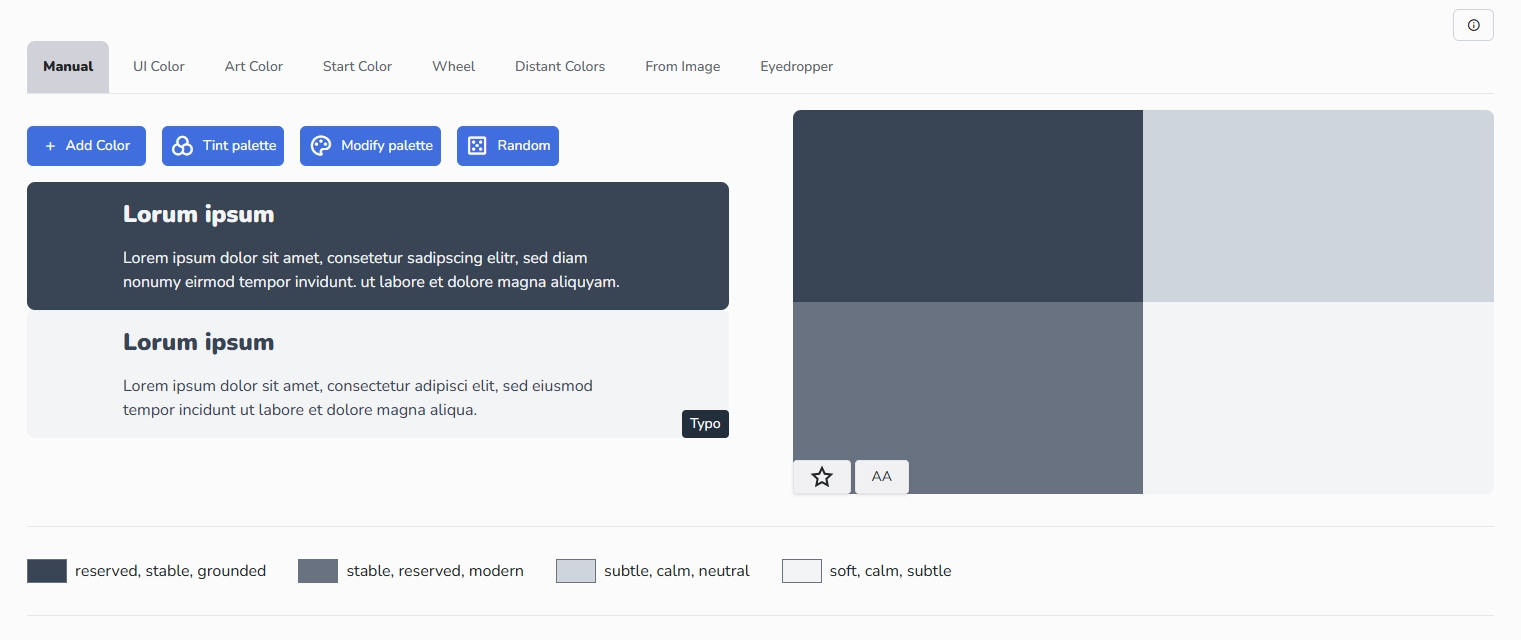
- Manual mode allows you to completely choose colors manually with the help of a color picker. Although you can shuffle using the dice, we than use color theory in the background to induce some strutcure and matching. The manual mode is the default. It allows editing and tweaking. If you created a palette with another tool and switch over to manual, you can edit and tweak the palette.
- UIColor uses a tactic to come up with colors suitable for UI applications. It looks for two colors that differ greatly in brightness or hue and creates a gradient between the two colors.
- Art Color is the automated search for colors on a random curve in the color space. This creates completely different and coordinated palettes.
- Start Color Based on a selectable start color, suitable palettes are created according to color theory. This may be a good fit, if you want some accent colors for a given color, like a brand color.
- Wheel Selection using a color wheel and various methods from color theory. This is color theory in action.
- Distant Colors Creation of colors that are as separate as possible for good legibility and accessibility, but with selectable ranges for hue, saturation and brightness. Great for creating muted or saturated palettes or palettes with a given range of hues or ligh- Aus Bild Erstellung einer Farbpalette aus einem Bild. Das Bild wird nur in den Browser geladen und ausgewertet. Keine Übertragung an den Server.tness.
- From Image Creation of a color palette from an image. The image is only loaded into the browser and evaluated. No transfer to the server.
- Eyedropper Create a color palette from an image. The image is only loaded into the browser and evaluated. No transfer to the server. Click on the image and the color will be applied.
Modifying palettes
Only private palettes can truly be modified. Public palettes, if modified are creating a new palette either private or public.
Saving palettes
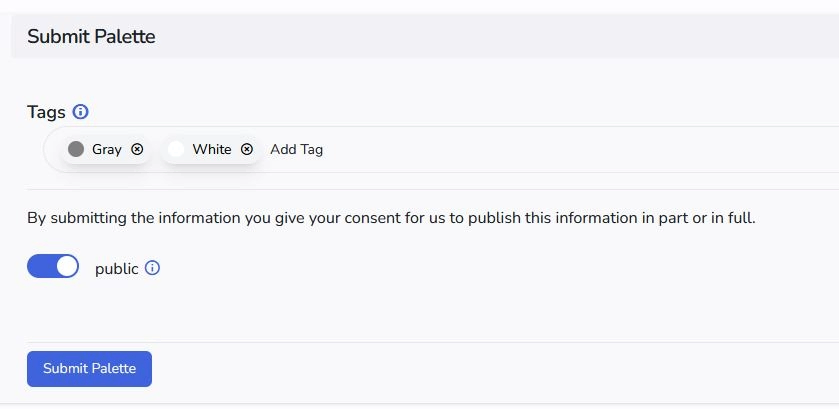
You can select tags for your new creation. Some are auto-generated, but you can modify the selection of tags.
Also, you need to select, if the palette should be private. Than only you can retrieve it. This does not exclude the possibility that someone else creates the same palette.
If you want save a palette as public, we check, if the palette exists already. If not it is stored in a sandbox. We enrich the data a little and curate the selection of palettes for the community. Than your palette might either get published and is accessible for anyone or will be discarded.
If you need to save palettes without this curation, save it as a private palette.
Accessibility of palette
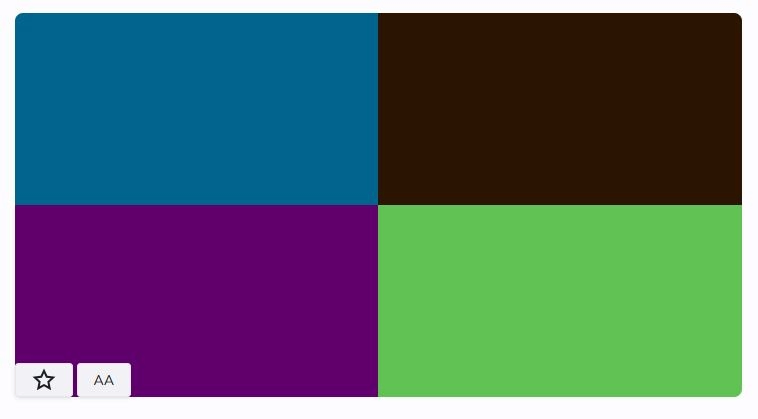
To see the contrast ratios and colorblindness rating, users with a subscription can press the button to the left of the star button in the palette preview. This will open an overlay with the accessibility information.
Save to selection
The palette preview holds a button with a star. This allows to put the palette into your temporary selection, and thus helps to compare other palettes. The palette does not need to be saved, but if you want to save the palette as a private or public palette, just use a edit palette in the context menu to return to this page and to save it.
Mockups
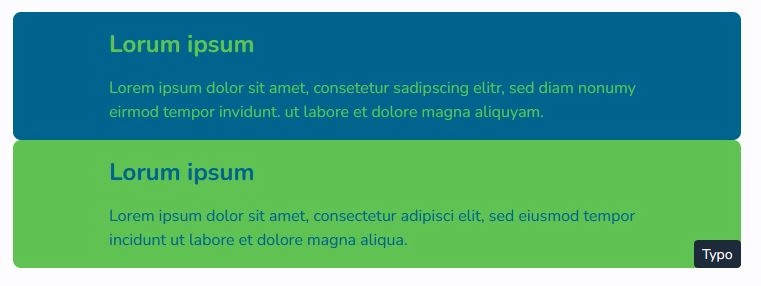
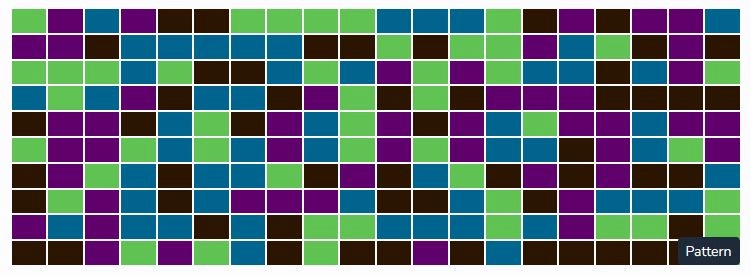
To further see how the palette works we offer two mock-ups: one is typography and the other are simply boxes. You can switch by pressing the button at the lower right corner.